In the daily debugging, LED display manufacturers occasionally encounter some intractable diseases, some need to use the latest version of software, some need to upgrade the firmware, and some may only need to slightly adjust the parameters to solve the problem . In this issue, we will share with you several typical problem cases and the introduction of the practical functions of the new version of the software HDSet .oneSeveral columns of pixels are not displayed in the area controlled by each receiving card
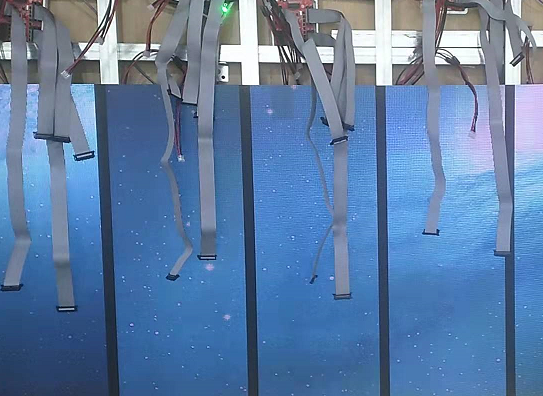
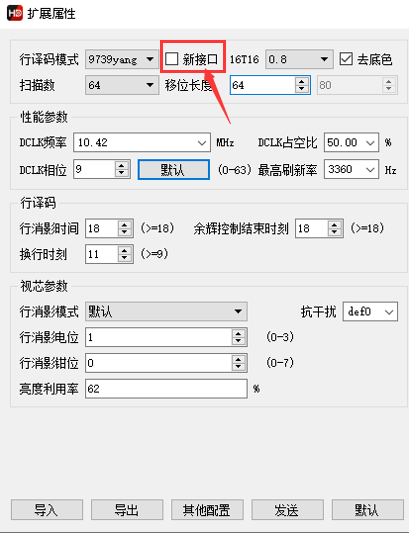
Display and problem descriptionIndoor P1.538 full-color LED display module , module resolution 208*104 , 1/52 scanning mode, HUB320 interface, A6 synchronous and asynchronous dual-mode playback box and R320 small-pitch special receiving card, each R320 with The loaded area has several columns of pixels that cannot be displayed.Solution1. When operating the smart setting, the module width is 16 , select the corresponding driver chip and decoding, and check if it is greater than 32 scans;2. Set data group exchange and data group offset: no offset is required for serial numbers 1~10 , the default value is " 0 ", and the offset value for serial numbers 11~20 is set to " 16 ".twoThe module of LS9929+9727 chip only shows redDisplay and problem descriptionHJ indoor P2.5 full-color display screen, module resolution 128*64 , 1/64 scanning method, LS9929+9737 chip, after debugging, the display screen only displays red, and green and blue do not display.SolutionUncheck "New Interface" in the extended properties of the HDSet debugging software .
threeThe first interface at the top of the display is abnormal
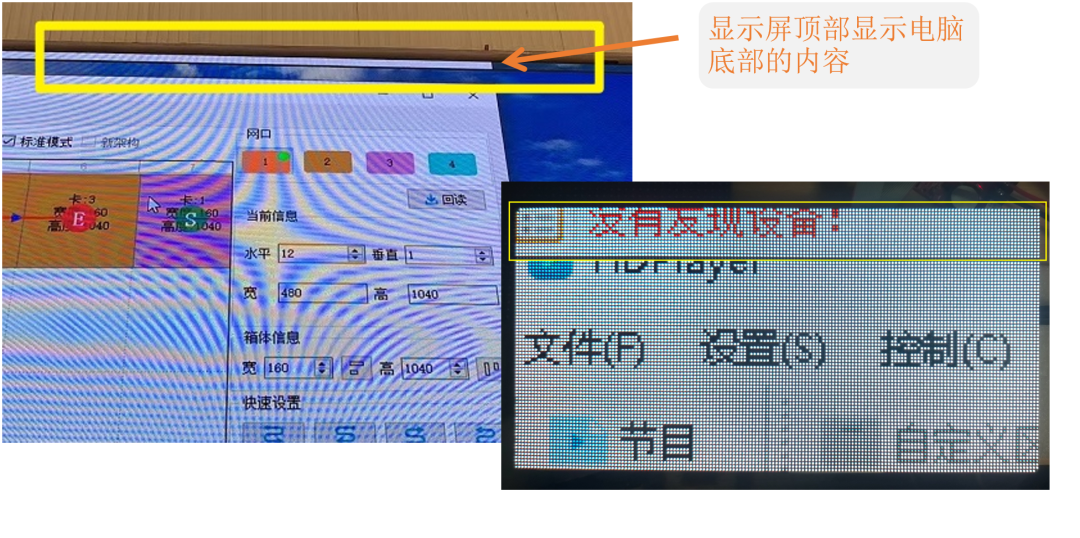
Display and problem descriptionIndoor P2 full-color display screen, module resolution 160*80 , using R516 receiving card, each receiving card carries 1 module width, 13 modules height (that is, the resolution is: 160*1040 ), the top of the display Displays the screen on the bottom of the computer.SolutionThe reason is that the limit control range of the receiving card is 128*1024 (that is, 130,000 points). In this case, a receiving card actually carries 166,000 points , which has exceeded the limit of the receiving card. In terms of software debugging, in order to help on-site technicians to quickly debug and locate problems, our debugging software HDSet is also constantly optimized and improved, and a new " new process" debugging method has been added. The "new process" not only optimizes the interface of the software, but also adds a number of useful debugging functions. Main functions of the new process1. The receiving card parameters and connection relationship are sent separately and independently;2. Data group exchange wizard-intelligent description group;3. Specify the receiving card parameter lock (only lock the receiving card parameters, not lock the connection settings);4. Coordinate copy mode of all receiving cards aging in the factory;5. Mapping function, display the location of the receiving card and the order of wiring;6. Support network port backup of sending card and backup between sending cards;7. Detection of the packet loss rate of the network cable between the sending card and each receiving card. Among them, the functions of "intelligent drawing group", "parameter lock" and " Mapping " can help technicians debug and locate problems in daily debugging.oneIntelligent drawing groupIt is used to exchange data groups in pairs to adjust the screen, and it needs to be configured after the smart setting is completed.
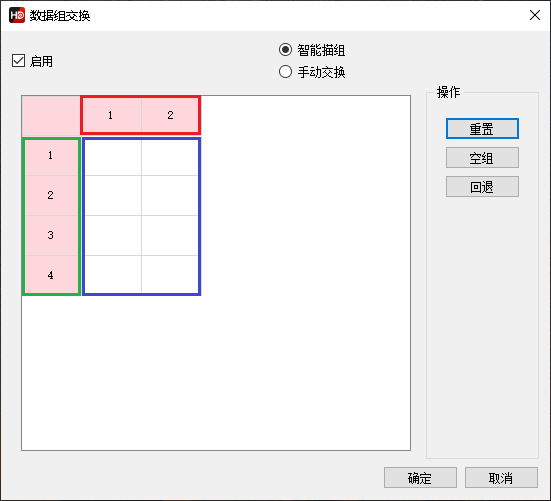
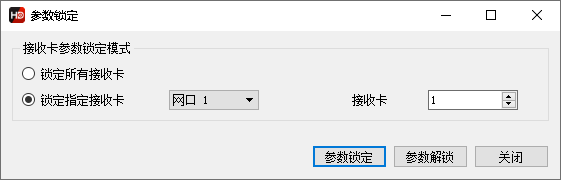
As shown in FIG: The red area represents how many sets of data there are in the horizontal direction, depending on the number of openings. If it is a normal input, there is only 1 column, and there are 2 columns in the second opening , and so on; the green area represents how many sets of data are in the vertical direction, depending on the height of the box Height with the data group; the blue area is the specific description area, which can be entered manually after enabling the smart description group.Steps1. Select all receiving cards or designated receiving cards, click "Data Group Exchange", and then confirm that the interface is consistent with the distribution of cabinet modules;2. Then check "Enable", and then click "Reset", at this time all the blue areas will be cleared, and the LED screen will also light up the first set of data;3. According to the bright position of the LED screen, click the corresponding position on the data group exchange interface, where is the bright spot, and proceed in sequence.In the process of scanning the group, if there is no display on the LED screen, you need to click on the empty group. If you click on the wrong position, just return to the operation again.twoparameter lockThe parameter lock function supports to lock the parameters of the specified receiving card, which is often used in the debugging of special-shaped LED displays such as KTV , bars, and sand table screens.Steps1. Click any blank space on the receiving card parameter interface, and input the English letter "cssd";2. Set the receiving card parameter lock mode on the pop-up parameter lock interface, and click the "Parameter Lock" button. The receiving card parameter lock supports 3 modes:
A receiving card in a single network port;
All receiving cards in a single network port;
Receiving cards in all network ports.
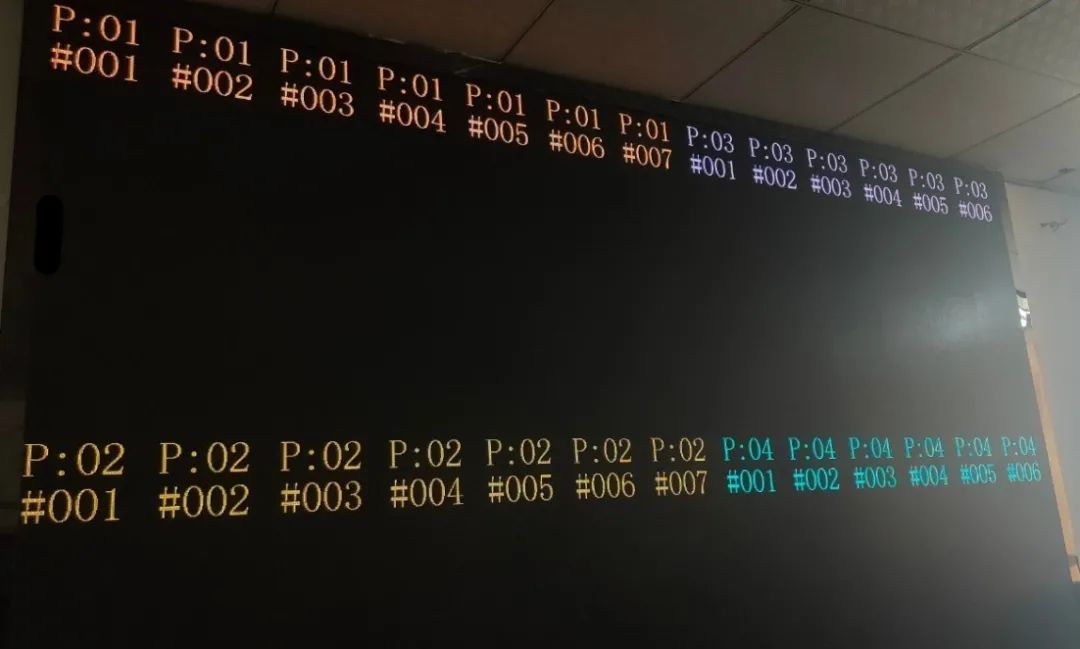
threeMapping functionThe Mapping function can clearly obtain the location and routing of the receiving card, making the cabinet connection easy and simple, and the problem cabinet can be quickly located. Steps1. First of all, it is necessary to ensure that the parameters of the receiving card are adjusted and displayed normally;2. Connect each network port of the sending end to the receiving card through a network cable;3. Select the new process, click the screen configuration, enter the connection setting interface, and enable Mapping ;4. After enabling Mapping , the LED screen will display a screen similar to the one shown below;5. xx indicates the serial number of the network port ( 01-16 ); # xxx : indicates the serial number of the receiving card in the corresponding network port ( 001-255 );6. According to the actual connection sequence displayed on the LED screen, after setting the connection sequence diagram of the receiving card for each network port on the connection setting interface, click "Send & Fix";7. Finally, click "Close Mapping" on the original "Open Mapping" button to check whether the entire screen display is normal.
Conditions to be met to support the Mapping function: 1. Software version: HDSet V2.1.0.3 and above 2. Receiving card firmware version: V22.xx.xx.xx and above 3. The FPGA firmware version of the sending card : need to support the new process and support the Mapping function 4. To write the font file into the receiving card, open the HDSet software, click Firmware Upgrade, enter the font interface, select the file, and click Write.